
Selection Lists for GrainSize, LabSuite, CLSuite4, Proctor, CONS and SHEAR
Our soils test programs include a feature that allows you to build lists of possible selections for the data entry fields on the programs' "Sample Info." windows. With the new feature you can set up a list of standard entries for fields such as "Tested By", "Checked By", etc. so that you can select -- with a single mouse click -- from a list of personnel instead of typing in the same names over and over for every test you enter.
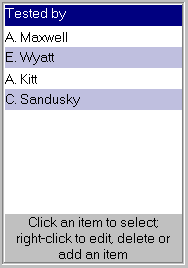
Sample Selection List
Selection Lists can also be used to easily insert boilerplate text into, for example, the testing remarks field. This can be very handy if the same basic text is always typed into a particular data entry field.
To use the feature, right-click on a data entry field on one of the programs' Sample Info. windows then select Make a Selection List. This shows an empty selection list box that you'll need to fill with selection entries (such as personnel names, or your test remarks boilerplate text). Right-click within the empty selection list and select Edit, Delete and Add Entries. When you've done the program will show the Selection List Editor dialog:
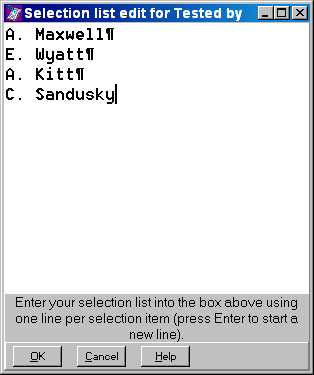
Selection List Editor Dialog
Each selection that you want to appear is typed on a separate line: Type a selection, then follow by pressing the Enter key (this will show up as a ¶ sign at the end of the entry). (You can delete entries by simply deleting the line of text that defines the entry, including the ¶ sign at the end of the line.) When you're finished, click OK to save the list.
Once you've created a selection list for a given data entry field, that list will automatically appear when you click in the data entry field, at which point you can either click on one of the items in the list (which will automatically fill in your data entry field with that item), or manually type data into your field.